Create custom name, letter, word, number, and symbol stencils online. Choose a font, adjust size and spacing, add stencil bridges, then preview, print, or export your design.
Free Name & Letter Stencil Maker
Create printable alphabet, number, word and symbol stencils directly in your browser.
Create Printable Name, Word and Text Stencils Online
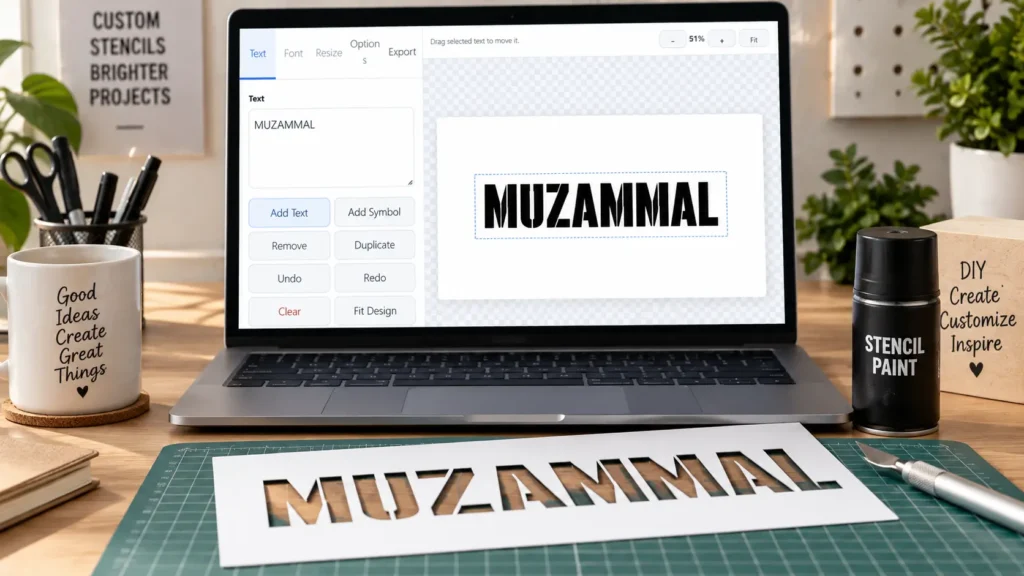
A name stencil maker turns ordinary text into a customizable pattern that you can print, save, resize, or use as the starting point for a physical stencil.
Instead of searching through fixed alphabet sheets, you can create the exact name, word, number, or short message your project requires.
The tool supports individual text pieces as well as multi-line designs. You can arrange several words on one canvas, add symbols, change fonts, resize individual pieces, rotate text, adjust spacing, and move elements directly on the preview.
If your project starts with a photograph or logo rather than text, our free stencil maker online explains the image-to-stencil workflow separately.
How to Use the Free Name Stencil Maker
- Enter your text. Type a name, word, number, phrase, or multiple lines in the Text panel.
- Add more elements. Use Add Text to create separate text pieces or Add Symbol to place stars, hearts, shapes, numbers, and other symbols.
- Choose your font. Select a bold, serif, sans-serif, monospace, or other available font and adjust its size.
- Arrange the design. Drag text on the canvas, change alignment, resize individual pieces, rotate them, and use Fit Design when needed.
- Prepare the stencil. Adjust letter overlap, line spacing, fill, outline width, inversion, and stencil-safe bridges.
- Choose the canvas. Use landscape, portrait, square, A-series, US Letter, or enter a custom width and height.
- Export or print. Download PNG, SVG, or PDF, print the design on one page, or divide a large stencil across multiple sheets.
Every adjustment appears in the live preview, so you can check the layout before using paper or stencil material.
Customize Fonts, Size and Text Alignment
Different stencil projects need different letter shapes.
Bold fonts usually work well for painting, signs, woodworking, large wall lettering, and hand-cut templates because thicker strokes are easier to see and cut. Regular fonts can work for larger designs where narrow strokes still have enough material around them.
Use the Font Size control to change the base text size and the Piece Scale control when you want to enlarge or reduce one selected design element without rebuilding the complete layout.
Left, center, and right alignment controls are especially useful when creating multi-line text such as addresses, quotes, event signs, labels, or stacked names.
For more advanced vector lettering workflows, our Illustrator stencil design guide explains how stencil text can be refined manually after export.
Add Multiple Names, Words, Numbers and Symbols
You are not limited to one line of text.
Add separate text pieces when different parts of the stencil need independent positioning or sizing. For example, a sign can contain a large family name, a smaller date underneath, and a decorative symbol beside the lettering.
The tool also includes common symbols and numbers, making it useful as a number stencil maker, alphabet stencil maker, sign lettering generator, and personalized name pattern maker.
Separate pieces can be selected, moved, duplicated, resized, rotated, or removed without clearing the rest of the design. Undo and redo controls make experimenting with layouts easier.
Adjust Letter Overlap and Line Spacing
Letter spacing can determine whether a stencil looks balanced or crowded.
The Letter Overlap control lets you move characters closer together or farther apart. This can help create compact signs, connected lettering effects, decorative layouts, or additional breathing room between wide characters.
For multi-line names and phrases, Line Spacing controls the vertical distance between lines.
Check the full design at normal size before printing. Letters that look comfortably separated while zoomed in may appear much closer together when the pattern is printed at its final dimensions.
Use Fill, Lines and Outline Width
The tool can display solid filled lettering, outlined lettering, or combinations that suit different template styles.
A filled design is useful when you want strong black-and-white contrast. Outline mode can be helpful when the printed pattern will be traced or hand-cut.
Use Outline Width to make the visible letter edge lighter or heavier.
The Invert control switches the foreground and background relationship, giving you another way to inspect positive and negative space before creating the physical stencil.
Make Stronger Letter Stencils With Stencil-Safe Bridges
One of the most important differences between normal text and a reusable physical stencil is the treatment of enclosed letter centers.
Letters such as A, B, D, O, P, Q, and R contain enclosed areas. If the surrounding material is removed without a connection, the inner section can become a loose island.
Enable Stencil-Safe Bridges to introduce small connecting gaps into supported closed characters. You can also adjust Bridge Width according to the size of your lettering.
Larger reusable stencils generally tolerate wider bridges, while small lettering needs careful testing because extremely narrow bridges can tear during cutting or repeated use.
For a deeper explanation of bridges, islands, paths, and cut-ready lettering, see our Illustrator stencil design guide. Cricut users can also compare their material workflow with the official Cricut stencil film instructions.
Resize and Rotate Individual Stencil Elements
Each selected text piece has its own scale and rotation controls.
Scaling is useful when a design contains a large main word and smaller supporting text. Rotation can create angled lettering, diagonal labels, decorative layouts, or text that needs to follow the orientation of the final surface.
You can also drag the selected text directly across the preview canvas instead of entering coordinates manually.
The Fit Design option is useful after several elements have been added because it brings the overall composition back within the working area.
Choose Landscape, Portrait, Square or Custom Canvas Sizes
The correct canvas shape depends on where the stencil will be used.
Landscape layouts are suitable for long names, signs, horizontal wall lettering, and wide boards. Portrait layouts work well for vertical signs and stacked words. Square layouts are convenient for centered names, numbers, monograms, or decorative designs.
The tool also provides A-series and US Letter proportions along with custom width and height controls.
Custom sizing is useful when you want the digital layout to match a specific board, wall section, craft blank, sign panel, or print ratio.
Download Your Stencil as PNG, SVG or PDF
Different projects need different output formats.
| Format | Best Use |
|---|---|
| PNG | Printing, previews, sharing, tracing, and raster-based workflows |
| Transparent PNG | Designs that need a transparent background for further editing |
| SVG | Scalable text-based artwork and continued editing in compatible vector software |
| Convenient printable stencil document | |
| One-Page Print | Patterns that fit on a single sheet |
| Poster Print | Large names and lettering divided across multiple sheets |
SVG is a scalable graphics format standardized for two-dimensional graphics; technical details are available in the W3C SVG specification.
For production cutting, always inspect the exported SVG in the software that will receive it. The current tool exports editable SVG text rather than automatically converting every character into final outlined cutting paths. If exact font appearance or machine-ready geometry is required, convert the text to outlines or paths in a compatible vector editor before production. Adobe also documents converting text to outlines as an SVG workflow option. Adobe SVG export guidance
For laser-specific preparation, path cleanup, and vector geometry, continue with our vector conversion for laser cutting guide.
Print Large Name Stencils Across Multiple Pages
Large wall lettering and sign stencils may be much bigger than a normal printer sheet.
The Poster Print feature divides the design into 2 × 2, 3 × 3, or 4 × 4 page grids. Each tile can be printed separately and assembled into a larger pattern.
This is useful for wall painting, wood signs, workshop projects, event decorations, large address numbers, classroom displays, banners, and oversized craft patterns.
Before using expensive stencil material, print the pattern on ordinary paper first. Assemble the sheets, check the total dimensions, inspect the bridges and spacing, and confirm that the finished size fits the intended surface.
Name Stencils for Painting, Signs and Wood Projects
Custom lettering stencils can be used on walls, furniture, wood boards, storage boxes, signs, doors, workshop equipment, craft blanks, school displays, and decorative projects.
For spray painting, the digital stencil is only one part of the final result. Stencil contact, paint application, surface preparation, and light coats also affect edge quality.
Our spray paint stencil techniques guide covers practical methods for reducing paint bleed and improving stencil edges.
Using Name Stencils With Cricut and Other Cutting Workflows
The tool can help you create and arrange lettering before transferring the artwork into another design workflow.
For cutting machines, inspect letter thickness, spacing, bridges, and final dimensions carefully. Very thin strokes or very small bridge sections can become difficult to weed or cut cleanly.
If your Cricut cuts small lettering poorly, tears corners, or lifts stencil material, our Cricut stencil cutting troubleshooting guide explains common material, blade, pressure, mat, and design-related problems.
When exact vector paths are required, convert exported text to outlines and verify the paths in your vector or cutting software before sending the job to the machine.
Need a Photo Stencil Instead of a Name Stencil?
This tool is designed primarily for text, letters, words, numbers, and symbols.
If you need to convert a photograph, portrait, logo, sketch, or detailed raster image into a stencil, use a photo-oriented stencil workflow instead.
Start with our Best Free Stencil Maker Tools guide for online options. If the original image needs background cleanup, threshold adjustments, or manual editing first, our Photoshop stencil making tutorial explains that process.
Keeping text-stencil creation and photo-stencil conversion as separate workflows usually produces cleaner results because each requires different controls.
Browser-Based Name Stencil Maker
The stencil editor runs directly in the browser and the plugin creates the design locally on the page.
You can use the live controls on desktop or mobile without installing separate design software. The responsive layout adapts the controls and preview workspace to smaller screens.
For complex layouts, a larger desktop display can make precise positioning easier, while mobile works well for quick names, numbers, simple words, and print-ready patterns.
Tips for Cleaner Printable Letter Stencils
Start with bold lettering when the stencil will be cut by hand. Give narrow sections enough material to remain strong, check all enclosed letter centers, and increase bridge width when the stencil will be reused.
Avoid shrinking decorative fonts until thin strokes become fragile. Leave enough spacing for the cutting method you plan to use, and inspect the final pattern at full size rather than relying only on a zoomed preview.
For very large designs, use Poster Print and test the complete tiled pattern on inexpensive paper before cutting plastic, vinyl, Mylar, cardboard, or another stencil material.
Frequently Asked Questions
Is the name stencil maker free?
Yes. The tool itself can be used directly on the page to create and preview custom name, letter, number, word, and symbol stencil designs.
Can I make printable name stencils?
Yes. Create the name, adjust its font and size, then use PDF, PNG, one-page printing, or multi-page poster printing depending on the required size.
Can I make large letter stencils?
Yes. You can enlarge individual text pieces, change the canvas dimensions, and use Poster Print to divide oversized designs across 2 × 2, 3 × 3, or 4 × 4 sheets.
What are stencil bridges?
Stencil bridges are small connections that help enclosed areas remain attached to the surrounding stencil material. They are especially important for reusable stencils containing letters with closed centers.
Can I create number stencils?
Yes. Numbers can be entered like normal text, and additional number symbols are available through the symbol selector. Their font, scale, rotation, spacing, fill, and outline can be adjusted.
Which stencil file format should I download?
Use PNG for general image use and simple printing, PDF for convenient document printing, and SVG when you want scalable artwork or further vector editing. For cutting-machine production, inspect the SVG and convert text to final paths when necessary.
Can I add more than one word?
Yes. Use Add Text to create multiple independent text pieces. Each piece can be positioned and resized separately.
Does the tool work on mobile?
Yes. The interface includes a responsive mobile layout. For complex arrangements with many text pieces, desktop can provide more working space.
Can I use my stencil for spray painting?
Yes. The exported or printed pattern can be used to prepare a physical stencil for suitable painting projects. The stencil material, surface preparation, attachment method, and painting technique will affect the final result.
Create Your Custom Name Stencil
Enter your name, word, number, or phrase in the tool above and adjust the design until it matches your project.
Choose the font and layout, fine-tune spacing and size, add stencil-safe bridges when necessary, and export the finished pattern in the format that fits your workflow.
Whether you are creating a small craft template or an oversized wall pattern, the goal is the same: make the lettering clear, properly spaced, physically practical, and easy to print or continue editing.