Calculate your stencil project
Scale a cut-ready stencil proportionally and calculate raster export pixels for accurate printing.
Enter your values and calculate.
How to use the stencil scale & print size calculator
This free stencil scale and print size calculator helps you resize a design proportionally before printing or exporting an image. Enter the original physical size, your target width, and a resolution value to calculate the new height, scaling percentage, and raster pixel dimensions. It is useful for craft stencils, painted signs, lettering templates, and repeated artwork. The tool estimates dimensions; it does not upload, edit, or download your artwork.
Enter four measurements
- Original design width: Measure the current stencil width in inches, including any border you want to retain.
- Original design height: Enter the matching original height, also in inches.
- Target width: Specify how wide the finished stencil should be. The tool derives its height automatically.
- Print resolution: Enter the intended image pixels per inch, commonly 300 for detailed printed artwork. The field is labelled DPI for familiarity, although image pixel density is technically PPI.
Press Calculate to display the result. A change to any of the four values updates the estimate. All entries must be positive; use decimal values when your stencil has fractional-inch dimensions.
How proportional stencil scaling works
A proportional resize keeps the original width-to-height relationship. First, the calculator divides target width by original width to find a scale factor. It multiplies the original height by that factor, so artwork is not stretched sideways or squashed vertically. A 150% scale means every linear dimension becomes one and a half times its starting size. A 50% scale produces a design half as wide and half as tall. The same principle applies to letters, logos, and multi-layer stencil outlines.
Stencil scale and print size formulas
You can verify the calculator's outputs using these equations: scale percentage = target width ÷ original width × 100; new height = original height × (target width ÷ original width); export width in pixels = target width × chosen image resolution; and export height in pixels = new height × chosen image resolution. Pixel dimensions round upward to whole pixels. These are planning formulas, not an image-resampling operation.
Worked example: resize an 8 × 6 inch stencil
Suppose your butterfly stencil is 8 inches wide and 6 inches high, but you need a 12-inch-wide version. Divide 12 by 8 to get a scale factor of 1.5. Multiply 6 by 1.5 to obtain a new height of 9 inches. Your stencil becomes 12 × 9 inches at 150% scale. At a target image resolution of 300 pixels per inch, the suggested raster canvas is 3600 × 2700 pixels. These match the calculator's default inputs.
Understanding your result
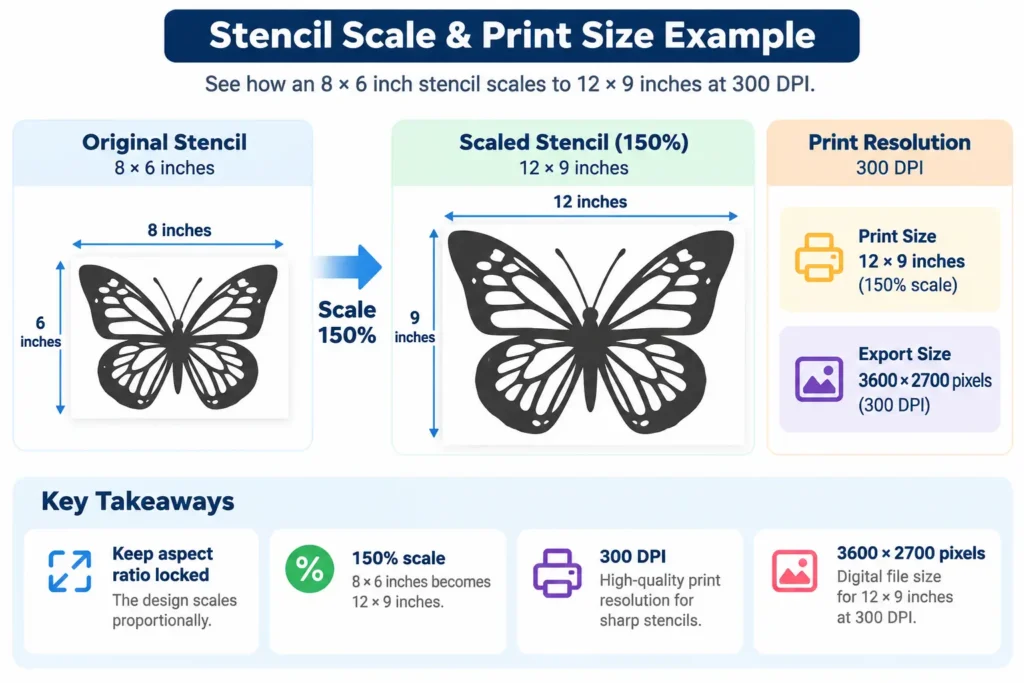
The percentage tells you how much larger or smaller to make the artwork relative to its original measurements. The new dimensions are physical print dimensions, while the pixel result describes a possible raster export size. The calculator does not inspect your existing image's resolution. Enlarging a low-resolution image to more pixels cannot recover lost edge detail; it may simply interpolate blurry pixels. For a cleaner stencil, check edges, bridges, and fine cutouts after resizing.
DPI, PPI, and print-ready stencil artwork
PPI describes pixels per inch in a digital image at its intended print size; a printer's hardware DPI measures ink or toner dots and is not identical. Many design applications casually use “DPI” for image export settings. A target of 300 PPI is a useful starting point for detailed close-viewed prints, but it is not a guarantee of sharpness. Adobe explains the distinction in its image size and resampling guide. Vector artwork may scale cleanly without selecting a raster pixel count until export.
Print your stencil at actual size
Before printing, set the document to the calculated physical dimensions. Choose Actual size or 100% in the print dialog and avoid automatic “Fit to page” scaling if an exact measurement matters. Confirm that the paper's printable area can accommodate the design; a 12-inch-wide stencil will not fit at full size across an ordinary 8.5-inch-wide Letter sheet. Large designs may require tiling in separate software. Print a small test or include a ruler reference, then measure the output. Adobe's Acrobat print sizing instructions explain the difference between Actual size and Fit.
Avoid stretching, cropping, and cutting problems
Changing both width and height independently can distort letters and familiar shapes. Resize with the aspect ratio locked; crop only when you deliberately want to remove part of a design. Leave room for registration marks, handling borders, and cutting-machine limitations. Tiny bridges can become fragile when shrinking a stencil, while enlarging raster art may reveal jagged edges. Prepare cleaner designs using our Stencil Maker, create properly sized lettering with the Name Stencil Maker, or use the Image Grid Maker for manual transfer.
Frequently asked questions
Can I scale a stencil by percentage?
Yes. The tool reports the percentage implied by your original width and new target width. To target a specific percentage, multiply your original width by that percentage divided by 100, then enter the result as the target width.
Will this calculator resize my uploaded image?
No. It calculates physical dimensions and suggested raster pixels only. Apply those values in your image editor, cutting software, or document layout.
Why is my printed stencil smaller than expected?
Check print scaling, page margins, and paper size. “Fit” or “Shrink to printable area” may change the size even when your image document has the correct dimensions.
Does 300 DPI make a blurry stencil sharp?
No. Pixel count alone cannot recreate missing details. Start with a clear source or vector design and test the finished print before cutting.
Can I use this tool for A4 or US Letter paper?
You can calculate design dimensions for either paper size, but the tool does not automatically check paper fit or split a large stencil across multiple sheets.